

Procedure File Manager Panel

jjweimer
Wed, 01/30/2008 - 04:18 pm
THIS PACKAGE IS NO LONGER SUPPORTED.
Please consider Package Tools instead.
http://www.igorexchange.com/project/PackageTools
This package displays a panel with a checkbox list to select procedure file(s) for loading/unloading and checkboxes to set certain coding-specific parameters. It might be a useful tool for programmers who are coding on different procedure files or for users who wish to load/unload different procedure files in an effective manner.
AS AN UPDATE: Open the CodeDeveloperPanel folder. If you do NOT see a file called CodeDeveloperPanel.lcl.ipf (the localization file), it has likely been HIDDEN! Unhide it by opening the panel in Igor Pro and/or by setting Show Hidden Folders in Windows/MacOS. Once you have located your current .lcl.ipf file, move it to your desktop. Now delete the DeveloperPanel folder and follow the above procedures for FIRST TIME installation. After this, use a text editor to open the .lcl.ipf file that comes with the new installation and to open your previous .lcl.ipf file. Copy over your list(s) of packages from the latter to the former.
Please also see the release notes for each version for any other specific installation requirements.
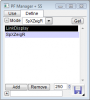
The Mode popup switches between a Coder list of packages and a User list of packages. They can be the same or not.
Use the Show Localization checkbox to unhide the localization file for editing (any change should take affect AFTER you quit and restart Igor Pro and BEFORE you restart the panel display!!!!).
The Compile checkbox only works when Auto-Compile mode is ON.
The Save icon saves the current Experiment (not procedures files).
If you close the panel and reselect it, it resets all the globals. Use this to change your list of packages dynamically (you must SHOW the localization file first).
View All Releases
Please consider Package Tools instead.
http://www.igorexchange.com/project/PackageTools
This package displays a panel with a checkbox list to select procedure file(s) for loading/unloading and checkboxes to set certain coding-specific parameters. It might be a useful tool for programmers who are coding on different procedure files or for users who wish to load/unload different procedure files in an effective manner.
Features
Specify a checklist of your procedure files to include or delete while developing your code. As a Coder, you have access to Independent Module Development. As a User, you just have a list of procedure files.Distribution Details
- Experiments: none
- Procedure Files: CodeDeveloperPanel
- XOPS: none
- Demos: none
- Requires Packages: NONE OPTIONAL: ScreenSizer
- Help Files: none
- Documentation: the Web pages for this project
Installation Notes
FIRST TIME: After you unpack the procedure, put the CodeDeveloperPanel folder in the Igor Pro User Procedures folder. To have the code always available, make an alias (shortcut) to this folder and place it in the Igor Pro Igor Procedures folder.AS AN UPDATE: Open the CodeDeveloperPanel folder. If you do NOT see a file called CodeDeveloperPanel.lcl.ipf (the localization file), it has likely been HIDDEN! Unhide it by opening the panel in Igor Pro and/or by setting Show Hidden Folders in Windows/MacOS. Once you have located your current .lcl.ipf file, move it to your desktop. Now delete the DeveloperPanel folder and follow the above procedures for FIRST TIME installation. After this, use a text editor to open the .lcl.ipf file that comes with the new installation and to open your previous .lcl.ipf file. Copy over your list(s) of packages from the latter to the former.
Please also see the release notes for each version for any other specific installation requirements.
User Notes
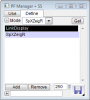
The Panel appears under the Misc:Panels menu.The Mode popup switches between a Coder list of packages and a User list of packages. They can be the same or not.
Use the Show Localization checkbox to unhide the localization file for editing (any change should take affect AFTER you quit and restart Igor Pro and BEFORE you restart the panel display!!!!).
The Compile checkbox only works when Auto-Compile mode is ON.
The Save icon saves the current Experiment (not procedures files).
If you close the panel and reselect it, it resets all the globals. Use this to change your list of packages dynamically (you must SHOW the localization file first).
Images:
Project Details
| Project CVS: | http://svn.igorexchange.com/viewvc/packages/CodeDeveloperPanel/ |
Current Project Release
CodeDeveloperPanel IGOR.6.03.x-1.0.x-dev
| Release File: | CodeDeveloperPanel-IGOR.6.03.x-1.0.x-dev.zip |
| Version: | IGOR.6.03.x-1.0.x-dev |
| Version Date: | Thu, 07/24/2008 - 05:00 pm |
| Version Major: | 1 |
| Version Extra: | dev |
| OS Compatibility: | Mac-Intel Windows |
| Release Notes: |
This is a snapshot of the core for the project. It may or may not reflect the most recent developments on the project, and it may or may not be equivalent to the most recent version of the project. See the SVN log here for information on changes made. When in doubt, please download an official release of this project. |

Forum

Support

Gallery
Igor Pro 9
Learn More
Igor XOP Toolkit
Learn More
Igor NIDAQ Tools MX
Learn More